Video Instructions
Grading Assignments
Marking Guides appear at the bottom of their related assignment page. Students can see the same except for the View/Grade All Submissions link. Under Submission Status, you will find information on the Grading Status, assignment due date, time remaining on the assignment, and the grading criteria.
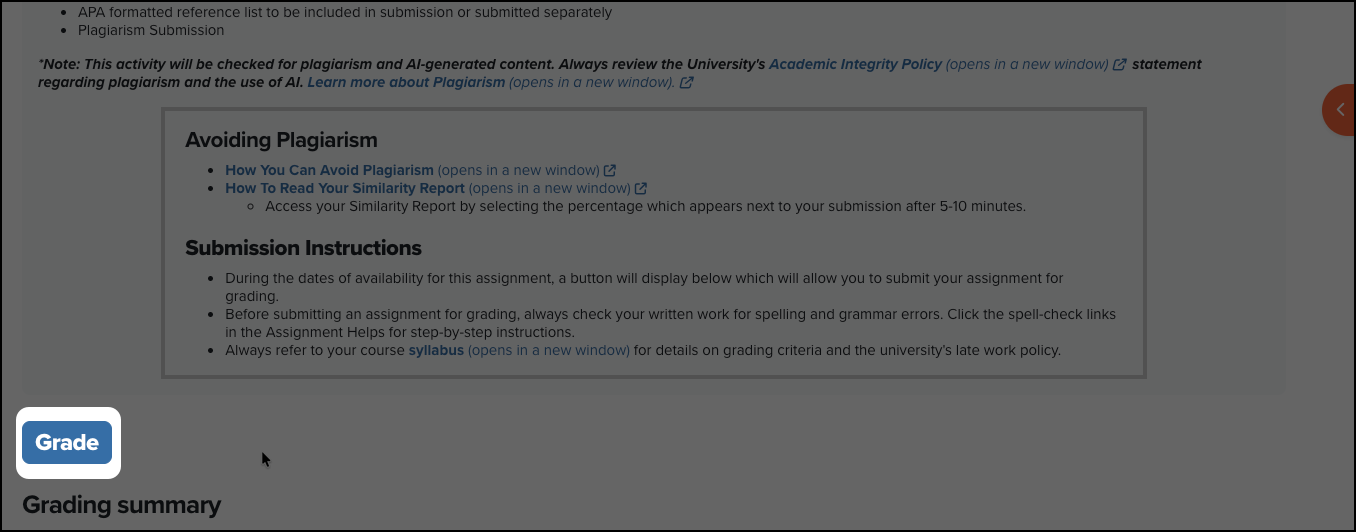
1. You will access the Module Grader, by selecting the Grade button on the assignment page.
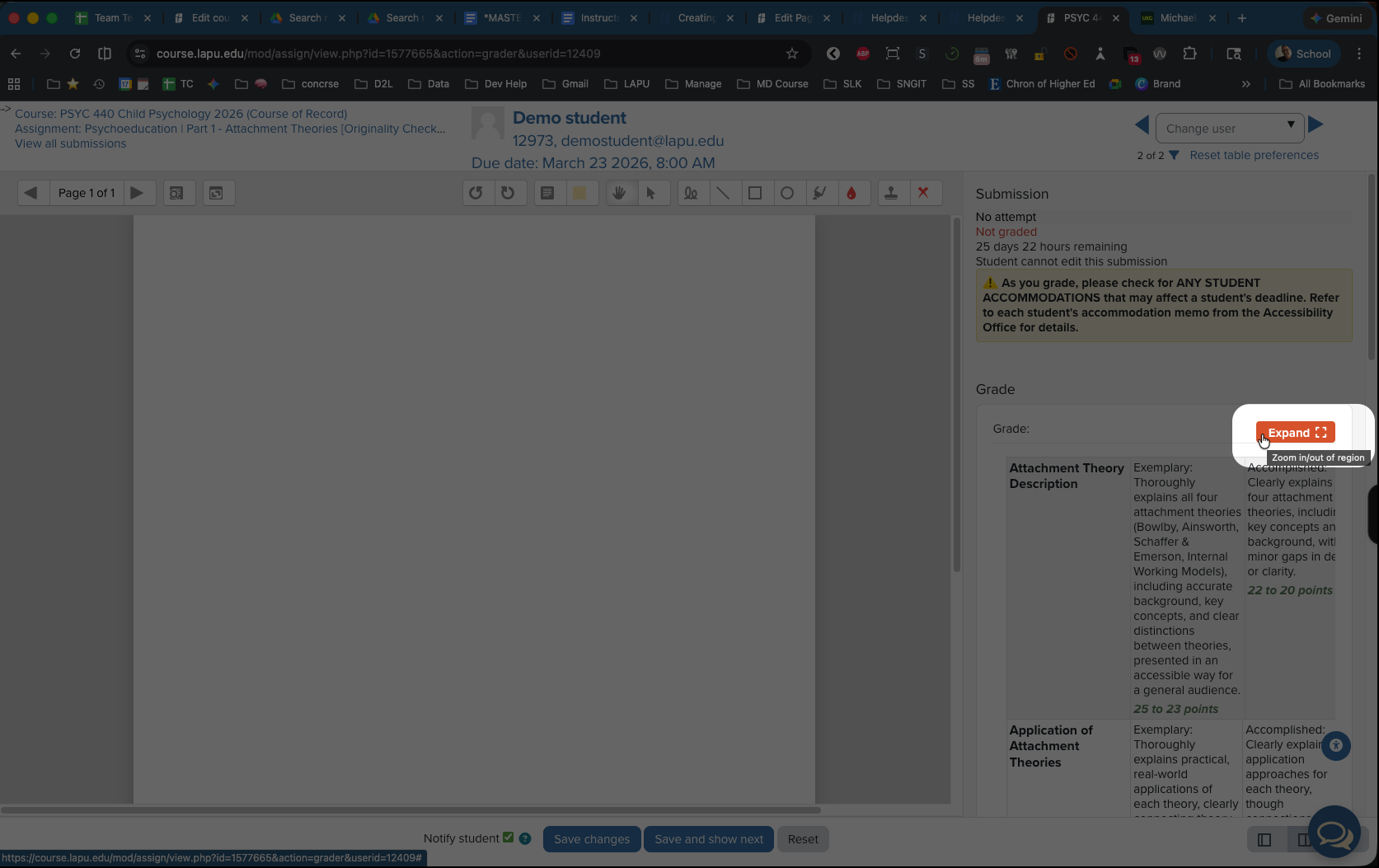
2. On the grading panel click the Expand button to expand the rubric
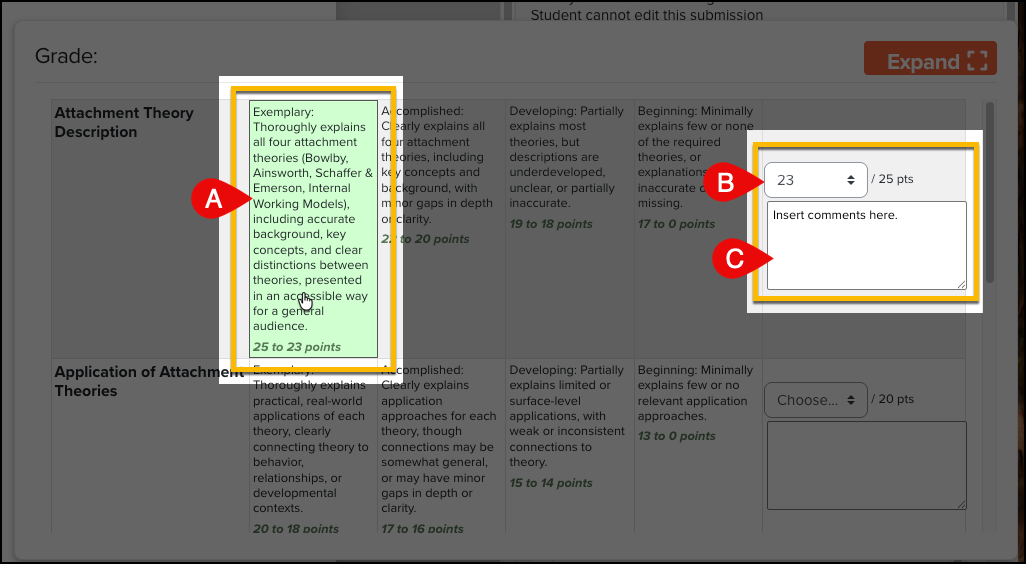
3. Once expanded, you will see the full rubric, and you will have several options.
- Select the range that best fits the student's submission. ⚠️ When selecting the rubric (A) the grade value defaults to the lowest points available in the range (B).
- You can adjust or set the point value to the desired points. This will automatically highlight the range based on the points changed
- Add additional comments based on the student's performanace in that criterion.
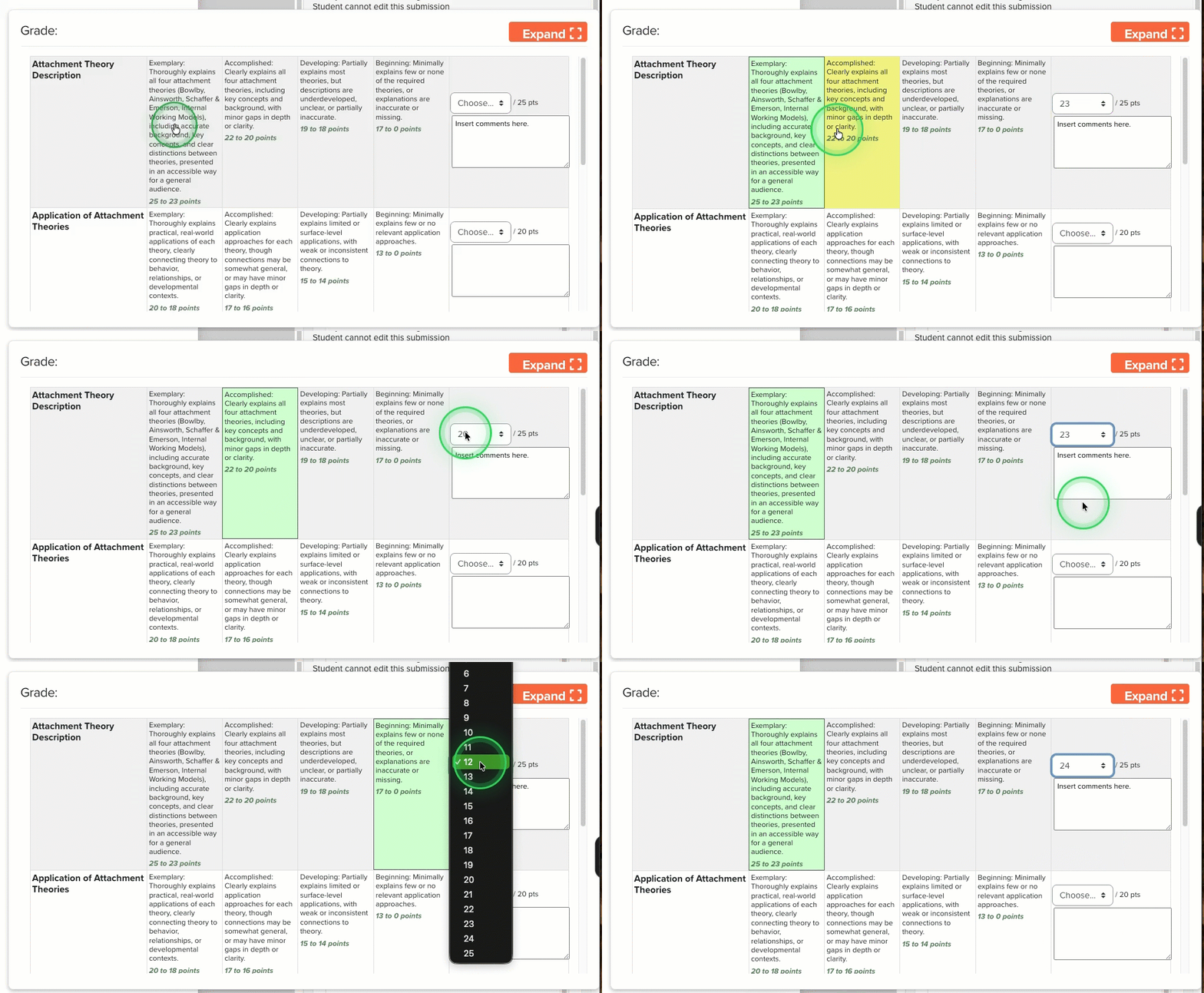
Watch how the Points and Highlights are interconnected and how the grader defaults to the lowest point value.
4. Click the Expand button to shrink down the rubric and access other areas of the grader.
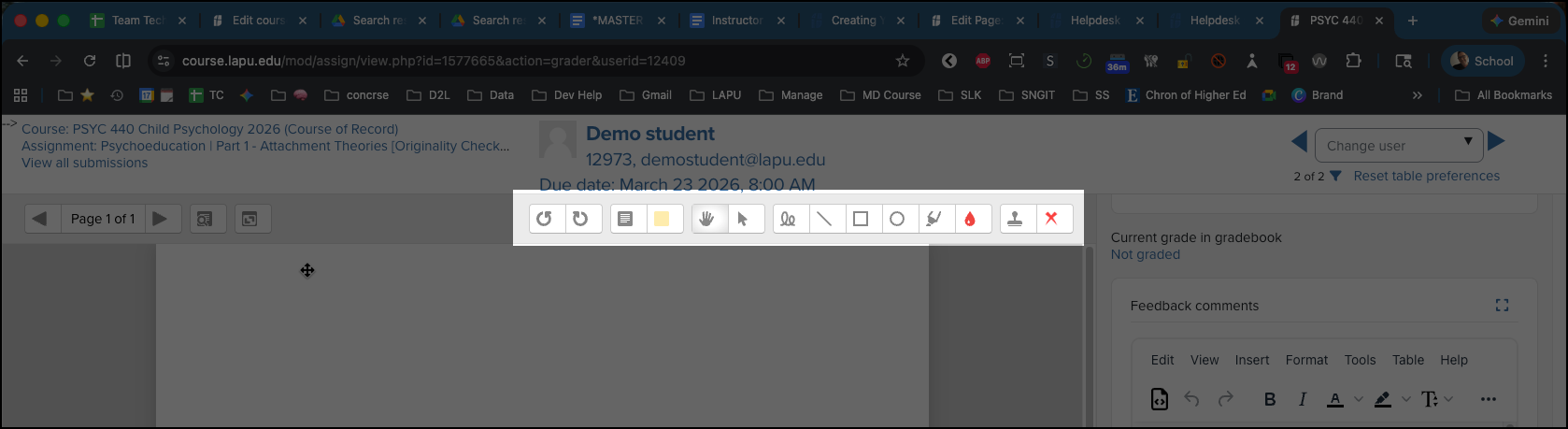
5. Annotate the Submission using these tools
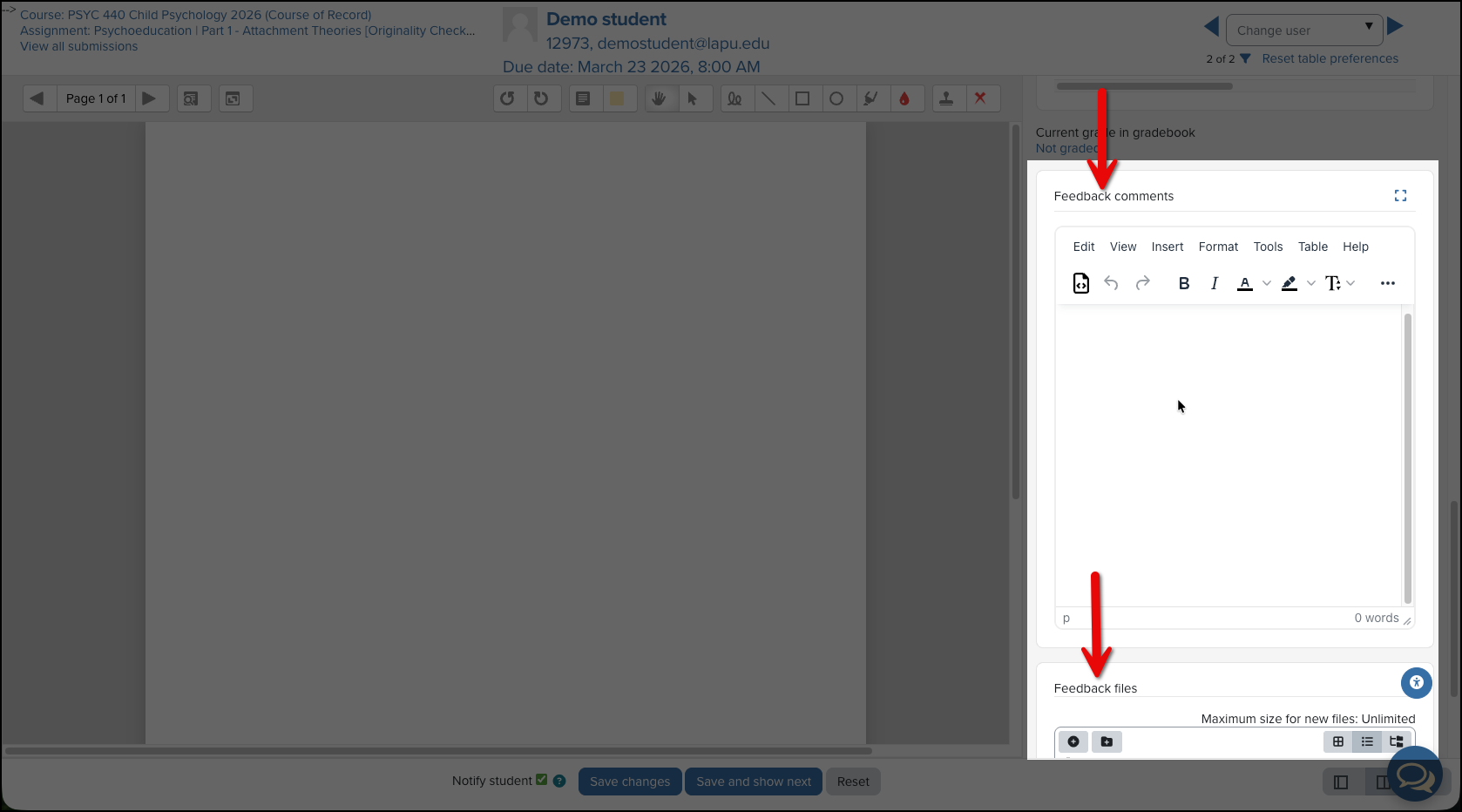
6. Scroll down the grader panel to provide overall feedback on the file or to upload a feedback file.
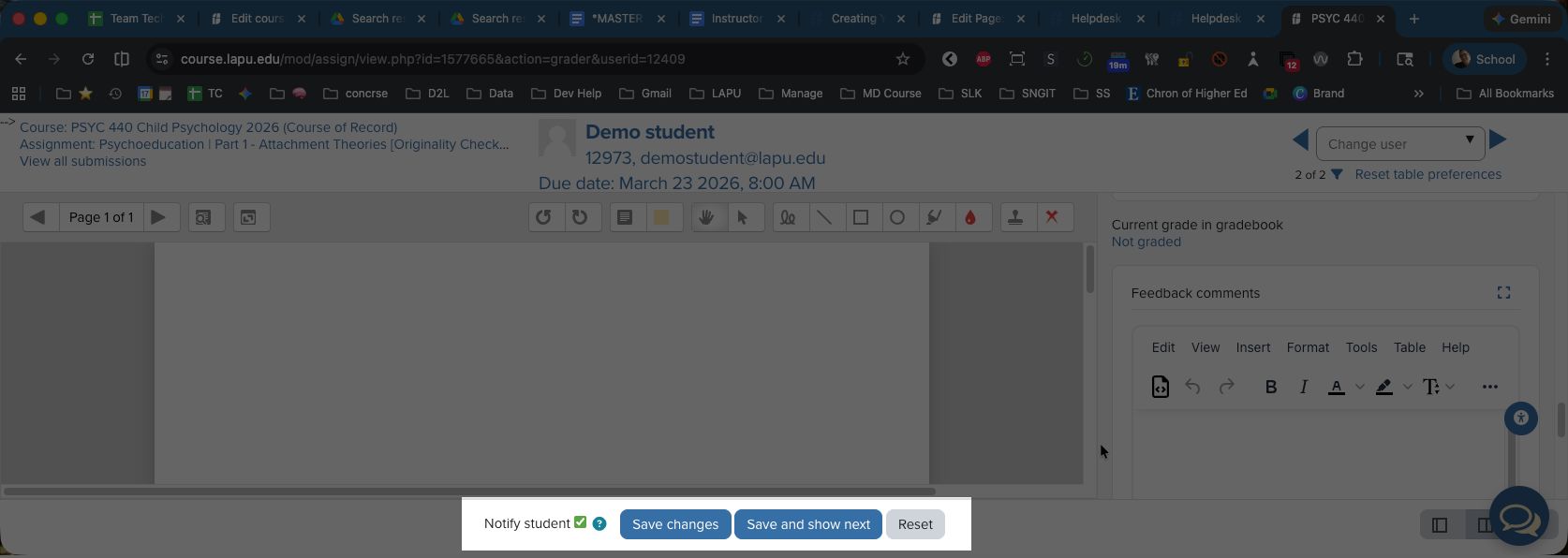
7. Use the buttons at the bottom of the page to save your grade and feedback and move to the next student.
Was this article helpful?
That’s Great!
Thank you for your feedback
Sorry! We couldn't be helpful
Thank you for your feedback
Feedback sent
We appreciate your effort and will try to fix the article